How to record Google Meet as a participant (not the host)
If you're not the host, Meet's built-in recording may not be open to you. You can still record the call from your side: the Record Google Meet & Any Tab extension records the Meet tab in your own Chrome and saves it as a video file on your computer, with everyone's voices and your microphone. It doesn't use Meet's recording feature, so it works the same whether you host the call or just joined it.
Three steps
- Add the extension to Chrome. A page opens asking for the microphone: allow it once, so your own voice is in the recording.
- Join the call as you normally do, click the extension icon and press Start recording. The icon shows REC and then the elapsed time, and you keep hearing the call.
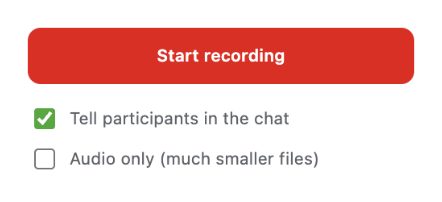
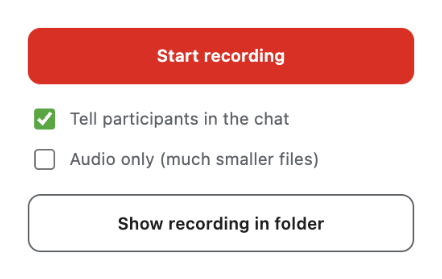
- Press Stop, or simply leave the call: the recording stops and saves by itself. The file is in Downloads > Meet Recordings, named after the meeting.
Add to Chrome About the extension
The first 5 recordings are free, then it's $5 a month or $50 once. See the price details.
What the other participants see
- No bot joins the call, so nobody new appears among the participants.
- When you start, the extension posts a message in the meeting chat saying that a recording has started, and pins it so that people who join later see it too. This is the default, set by Tell participants in the chat in the popup.
- If the host has turned chat off for participants, nothing can be posted. Tell people yourself.
- While you're muted in Meet, your microphone is muted in the recording too.
Please respect the people you record: some countries and regions require everyone's consent before a call is recorded.