How to record Google Meet without a bot
Many meeting recorders work by sending a bot into the call as an extra participant. Record Google Meet & Any Tab works differently: it records the Meet tab inside your own Chrome. Nothing joins the call, there is no account to create, and the recording is a file on your computer, not in a cloud service.
Three steps
- Add the extension to Chrome and allow the microphone on the page that opens, so your voice is recorded along with the call.
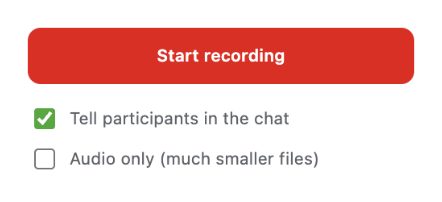
- In the call, click the extension icon and press Start recording. Recording begins right away in your browser: there is nothing to invite into the call.
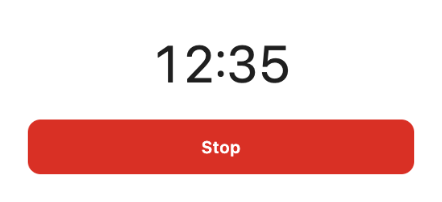
- While it runs, the popup shows a timer. Press Stop, leave the call or close the tab, and the file is saved to Downloads > Meet Recordings.
Add to Chrome About the extension
The first 5 recordings are free, then it's $5 a month or $50 once. See the price details.
What that means in practice
- Only the Meet tab is recorded, not your whole screen: notifications and other windows stay out of the video.
- People in the call are told through the meeting chat: by default the extension posts a notice there when you start.
- You get the recording itself, an MP4 file, or an M4A file with Audio only. The extension doesn't transcribe or summarize anything.
- There are no analytics and no tracking. The only network request the extension makes is a check of your license key, if you have one.
Please respect the people you record: some countries and regions require everyone's consent before a call is recorded.