How to record Google Meet audio only
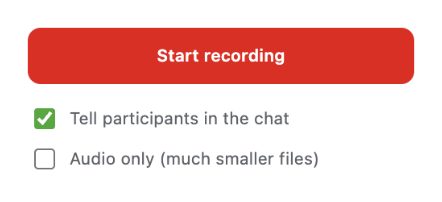
Tick Audio only in the Record Google Meet & Any Tab popup before you start. The extension then saves just the sound of the call, everyone's voices and your own microphone, as an M4A file: about 60 MB per hour instead of about 0.9 GB for video.
Three steps
- Add the extension to Chrome and allow the microphone once. Without it the file has only the other people's voices.
- In the Meet call, click the extension icon, tick Audio only (much smaller files) and press Start recording.
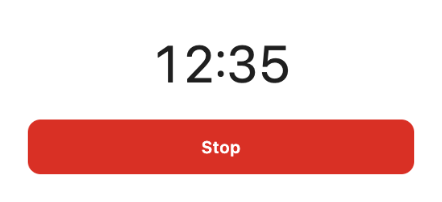
- Press Stop when you're done. An .m4a file appears in Downloads > Meet Recordings.
Add to Chrome About the extension
The first 5 recordings are free, then it's $5 a month or $50 once. See the price details.
Good to know
- The choice is remembered: the next recording is audio only too, until you untick it.
- While you're muted in Meet, your microphone is silent in the recording.
- Use headphones if you can. On speakers your microphone also picks up the other participants, and their voices may sound doubled.
- It works the same in any other tab: a webinar, a lecture, a call in another web app. There you can also turn off Record my microphone to keep only the tab's sound.
Please respect the people you record: some countries and regions require everyone's consent before a call is recorded.