How to record Google Meet on a free Google account
Meet's built-in recording needs a paid Google plan, so on a free account there is no Record button to press. What works on any account is recording the browser tab the call runs in. Record Google Meet & Any Tab does this in Chrome: it saves the Meet tab's picture, everyone's audio and your own microphone to an MP4 file on your computer.
Three steps
- Add the extension to Chrome and allow the microphone when it asks. There is no account to create.
- Open your Meet call, click the extension icon and press Start recording.
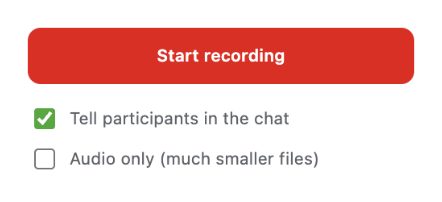
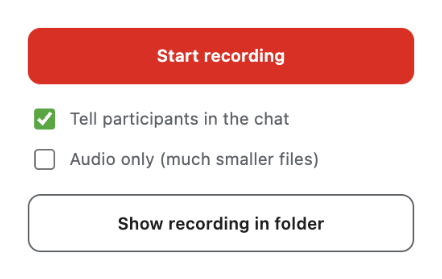
- When the call is over, press Stop or leave the call. The MP4 appears in Downloads > Meet Recordings, and the popup offers to show it in the folder.
Add to Chrome About the extension
The first 5 recordings are free, then it's $5 a month or $50 once. See the price details.
What to expect
- A video file takes about 0.9 GB per hour. For long calls, Audio only brings that down to about 60 MB per hour.
- The recording is written to disk every 5 seconds while the call runs. If Chrome crashes, the popup offers to save the unfinished recording afterwards.
- It records one call at a time.
- You need Chrome 126 or newer.
Please respect the people you record: some countries and regions require everyone's consent before a call is recorded.